
Getting Started
Your username will remain, but you should receive a secure email with a Company ID and Temporary Password to log in for the first time.
Please follow the steps below to complete your first-time login.
Note: You must complete your first-time login via Online Banking before you can access our mobile app.
Online Banking
- Review the secure email you received from Eastern Bank with your first-time online banking login credentials. This will include your new Company ID.
- Visit EasternBank.com, click on ‘Business’ under ‘Accounts Login’ and select ‘Eastern Small Business’ from the ‘Business Accounts’ dropdown. Log in using your Company ID and User ID.
- Complete the one-time authentication and follow the prompts to complete first-time login.
- 'Accept’ the Terms & Conditions.
- Upon login, confirm that your accounts have transitioned and that your contact information is correct.
Once you are successfully logged in, you can begin banking online. You will need to use your Company ID, User ID, and password to log in going forward.
Mobile
- Please ensure you have completed the online banking steps provided, as you will need to do this before accessing mobile banking.
- Download the Eastern Small Business Mobile app from the app store on your device.


- Log in using your Company ID and User ID.
- Delete the HarborOne Bank mobile app as it will be inactive.
Tip: Remember to enable biometrics (e.g. Face ID or Touch ID) for secure, easy login on your mobile device.
Service Experience, Admins, and Users
Administrators:
- All Administrators have all available permissions to the company within digital banking.
- Primary Administrators: All companies must have one and only one assigned. Along with having all permissions to the company within digital banking, the Primary Administrator is the only point of contact for Eastern Bank – in other words, if another user has an issue within digital, the Primary Admin would be required to liaise with Eastern Bank to solve it.
- All primary administrators must review all users and their permissions and remove any inactive or unauthorized users.
Users:
- All users are granted permissions within Eastern Small Business Mobile and Online Banking by Administrators that determine their access to different accounts and services.
In most cases, this would be the individual who was set up as the Primary user at HarborOne. If there is no Primary Administrator, please contact a branch to complete the necessary paperwork.
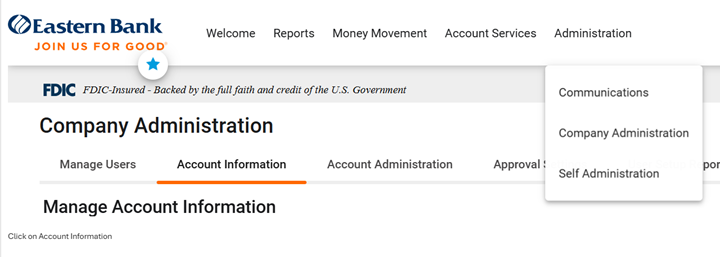
After logging into Eastern Small Business, the user can hover over the ‘Administration’ tab in the menu at the top of the screen. If you do not see ‘Company Administration,’ then you do not have the Administrator role.
During the preview period, an authorized signer will need to discuss changing the Primary Administrator with the Onboarding Specialist. The maintenance form will need to be filled out and signed by an authorized signer for the Primary Administrator to change.
After 2/23, an authorized signer will need to visit a branch location to fill out and sign the appropriate form for the Primary Administrator to change. If you need additional services, please reach out to your local Eastern Bank branch to help with that as well as switching to another platform if needed.
Account Information
It may take a few days to see all the details on your account.
- Scheduled internal transfers must be re-established
- External transfers will not be available
- Bill pay expedited payments and ebills
- Loan transaction history
- Tax documents for previous years
- User permissions to make loan advances
- Your HarborOne accounts
- Primary user, which is known as the “Primary admin” at Eastern Bank
- Secondary users who have logged in within the last 13 months
- Bill pay accounts, bill pay payees, scheduled payments, nicknames without certain special characters, and six months of payments history (history will be available after February 27th)
- 2026 deposit transaction history
You will see your transaction history for all of 2026.
Statements & Documents
Loan eStatements and tax documents will not be available. Please download any statements, notices, and tax documents from previous years that you may need access to prior to Friday, February 20th.
Customers who wish to view their deposit account statements electronically must enroll each account in eStatements within Eastern Small Business Mobile & Online Banking, even if they previously received electronic statements at HarborOne.
Enrollment can be completed at any time after the transition to Eastern Bank by following these steps:
- Sign into Eastern Small Business Online (not the Mobile app)
- On the top bar of your screen, hover over ‘Reports’ to make a drop-down menu appear
- Once the drop down appears, click on ‘Statements and Documents’
- On the ‘Online Documents’ page, click on the ‘View and maintain document preferences’ link
- On the ‘Manage Delivery Preferences’ page, all accounts will be displayed and beside each account will be a drop-down menu that will show ‘Paper’ or ‘Online’. To enroll an account in eStatements, select ‘Online’
- An eStatements service agreement will be displayed for you to agree to, and once you clicked ‘I agree,’ you will be prompted to ‘Save Preferences’ for just the affected account – click on ‘Save Preferences’
- Once you have saved your preferences, you will see a ‘Delivery Preferences Confirmation’ stating: ‘Your statement and document preferences have been saved successfully’
- Repeat this process as needed for all accounts for which you would like eStatements
Up to seven years of deposit statement history will transfer over. We ask that you please download any documents from previous years that you may need access to prior to Friday, February 20th.
Administrators can view account numbers by:
- Hovering over the ‘Administration’ tab located in the banner at the top of the screen
- Selecting ‘Company Administration’
- Clicking on ‘Account Information’
For deposit accounts, Eastern gives you the choice of paper or electronic but not both. If you had both at HarborOne Bank, you will now get paper statements. You can manage your statement settings online, and switch between paper and electronic delivery at any time.
Transfers
- Scheduled or recurring internal transfers will not transfer and need to be re-established after logging into Eastern Small Business Mobile and Online Banking.
- Recurring loan advances will not be transferred and are not supported.
Internal account transfers scheduled for any time after 2/20 will not be processed.
Internal transfers can be scheduled any time after the transition to Eastern Bank by following these steps:
- Sign into ‘Eastern Small Business Online’ (not the Mobile app).
- On the top bar of the screen, hover over ‘Money Movement’ to make the drop-down menu appear.
- On the drop-down menu, click ‘Transfer Money’.
- On the ‘Transfers’ screen, choose your ‘From’ and ‘To’ accounts.
- Next, input the amounts you would like, and add a description (this is optional).
- Next, choose how frequently this transfer will occur from the drop-down menu (note: if this is for a one-time payment, you can select ‘one-time’).
- Next, click ‘Continue,’ this will take you to the ‘Verify Transfer’ page. Review and if the details are correct, click ‘Transmit.’
- Finally, you will be taken to the ‘Transfer Confirmation’ page which will confirm that the request has been transmitted with confirmation and other details on the screen.
External transfer accounts and scheduled transfers will not be transferred. External transfers are not supported in Eastern Small Business Mobile and Online Banking.
Alerts
You can set up new alerts after 2/23. Alerts can be delivered via email, or text, but are not real-time.
Establishing alerts can be completed at any time after the transition to Eastern Bank by following these steps:
- Sign into ‘Eastern Small Business Online’ (not the Mobile App)
- On the top bar of the screen, hover over ‘Administration’ to make the dropdown menu appear
- Once the drop down appears, click on ‘Communications’
- On the ‘Communications’ page, click on the ‘Manage Alerts’ tab
- On the ‘Manage Alerts’ page, choose the subtab (‘Account’, ‘Non-account’, ‘Multiple accounts’, or ‘Custom’) you want to set alerts for; for account alerts click ‘Accounts’
- Next, choose the account you would like the alert for by using the account drop down menu (or you can also search by the last 4 digits of the account number)
- Review the available alerts, and to select ones you would like, simply click the circle with a plus sign on it
- Fill in any relevant details and to confirm the alert hit ‘Add’ once you are finished
- The new alert will show up now under an ‘Active’ alerts list at the top of the page
- Repeat steps 7 and 8 for alerts you’d like added to each account
You can set alerts for account balances and activity, transfers, statements, and stop payments. Only Administrators can set up alerts for any changes in user permissions.
Bill Pay
For those who have previously utilized Bill Pay at HarborOne, the Primary Administrator may access Business Bill Pay at Eastern by logging into Eastern Small Business Online. To proceed, select 'Money Movement' from the top navigation bar, then click on 'Bill Pay.' Additionally, the Primary Administrator has the capability to grant bill pay access to other users.
If your company did not use Bill Pay at HarborOne and would like to, please have your Primary Administrator contact us to enroll.
If you used bill pay at HarborOne, your information will be transferred to Eastern Bank.
- Accounts
- Payees
- Scheduled payments
- Nicknames (without certain special characters)
- Six months of payments history
Expedited bill payments and eBills will not be transferring over from HarborOne.
Starting Monday February 23, payments will be withdrawn from your designated account on the date you schedule to send them, rather than on the date they are delivered to the payee.
What’s changing:
- “Deliver By” to “Send On”: When you schedule an electronic or check bill payment, you’ll now see a “Send On” date. This is the day you submit your payment in Bill Pay.
- For electronic and check payments, your account will be debited on the “Send On” date. Please make sure the funds are available in your account on the Send On date, or the payment will not be released.
- Example: If you schedule a payment, whether it is made electronically or by check with a “Send On” date of March 3, your account will be debited on March 3.
- You will also notice the checks received by the payee are made on your behalf by the Bank's Bill Pay provider. Checks will not have your account number on them.
Take special note of any payments you have scheduled for delivery between February 20th – 26th. Once you transition to Eastern Small Business Mobile and Online Banking, you will not be able to see these pending payments, but they will still be processed.
Up to six months of Bill Pay history will migrate over from HarborOne Bank, however, it will take a few days to load into Eastern’s system; you should be able to view after February 27.
You can set up alerts in Small Business bill pay online by following these steps:
- Hover over ‘Money Movement’ in the top navigation bar
- Click on ‘Bill Pay’
- Select the ‘Resources’ tab to the right-hand side
- Select ‘Alert Preferences’
- Check off the alerts you would like to receive
- Click ‘Save’
If you cannot unfreeze your bill pay profile/account at HarborOne Bank, it will not transfer over, and you will need to enroll in bill pay and load payees. To unfreeze your bill pay profile/account, we recommend contacting Fiserv BillPay’s collection line at 800-848-1337 about 7-14 days prior to Thursday, February 19 to allow time to unfreeze your account. If Fiserv can unfreeze by this date, the account may be reactivated and able to transfer to Eastern.
Mobile Deposits
Thirty days of mobile deposit history will be displayed within Eastern Small Business Mobile.
No, please be sure to call customer support for any issues related to an Eastern Bank business debit card.
Profile, Settings, & Third-Party Integrations
You can update your email and phone numbers, but editing your physical address and username is not supported for security reasons. Please contact us for assistance.
Yes, account nicknames will transition over from HarborOne. If you would like to change the account nickname, it can be changed online but cannot be changed in the mobile app.
For Intuit products such as Quicken® and Quickbooks®, please refer to the conversion guides on EasternBank.com/Intuit. Please note Intuit’s Direct Connect connection type is not supported by Eastern Bank.
At this time, Eastern Small Business Mobile & Online Banking has limited support for connections to third‑party aggregators, such as Plaid and accounting platforms like Xero.